
Azure Firewall Guide: Blocking Unauthenticated Inbound Connections (A4.7)
When applying for Cyber Essentials, many businesses hit a stumbling block on Question A4.7. The question asks: “Is your firewall configured to allow unauthenticated inbound connections?”
If your answer is “Yes,” you cannot pass the assessment.
In the context of Microsoft Azure, this usually means you have “management ports” (like RDP or SSH) open to the entire internet. This is the digital equivalent of leaving your office door unlocked 24/7. It allows bots and hackers to “rattle the handle” of your server, attempting to guess passwords until they break in.
The Solution: You must configure your Azure Network Security Groups (NSGs) to whitelist only trusted locations, ensuring that unauthenticated traffic is blocked by default.
The “Why”: What is Unauthenticated Inbound Traffic?
Cyber Essentials requires you to block unauthenticated inbound connections by default.
In plain English, this means no random computer on the internet should be able to even see your server’s login screen. Access should be restricted to known, trusted sources—such as your main office IP address or a secure VPN.
If you leave port 3389 (Remote Desktop) open to 0.0.0.0/0 (The Internet), you are failing this requirement and exposing your business IT support infrastructure to significant risk.
The Remediation: Locking Down Azure NSGs
To fix this, we will audit your Azure firewall settings (Network Security Groups) and restrict access to specific IP addresses only.
Step 1: Locate Network Security Groups
- Log in to the Azure Portal.
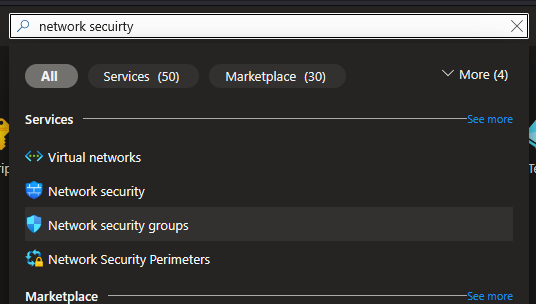
- In the top search bar, type “Network security groups”.
- Click on the service icon.
Step 2: Select Your Active Group
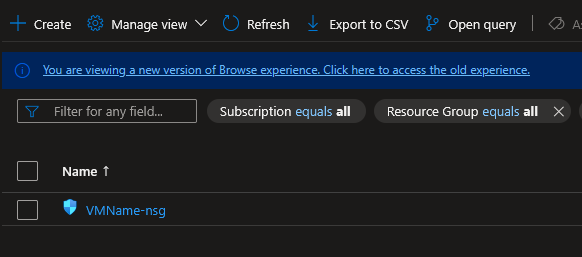
You will likely see a list of NSGs (usually named something like VMName-nsg).
- Click on the NSG associated with your Virtual Machine or Subnet.
- Tip: If you have multiple VMs, you will need to check every NSG that faces the public internet.
Step 3: Review Inbound Security Rules
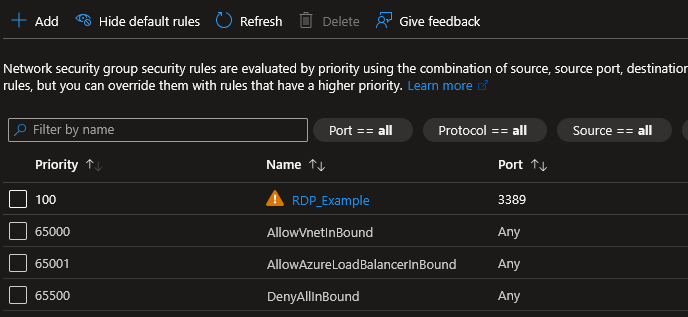
On the left-hand menu, under Settings, click Inbound security rules.
Look for any rule where:
- Source is “Any”, “Internet”, or
0.0.0.0/0. - Action is “Allow”.
- Port is a management port like 3389 (RDP) or 22 (SSH).
Azure often puts a warning triangle (⚠️) next to these rules because they are high risk.
Step 4: Restrict the Rule (The Fix)
Click on the risky rule (e.g., the “Allow-RDP” rule) to edit it.
- Change Source: Change this from “Any” to “IP Addresses”.
- Source IP addresses/CIDR ranges: Enter your office’s public IP address here. (You can find this by typing “what is my IP” into Google).
- Click Save.
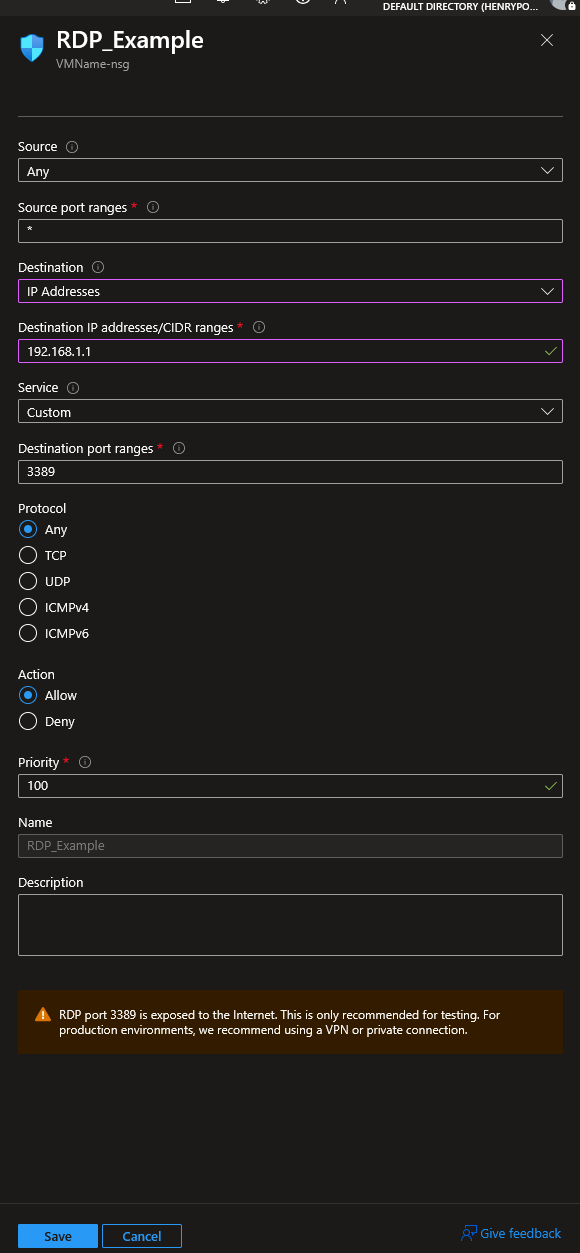
By doing this, you have blocked “unauthenticated inbound connections” from the general internet. Only traffic from your specific, trusted IP will be allowed to connect.
Advanced Enterprise Solution: Azure Bastion
For a robust enterprise IT strategy, manually whitelisting home IP addresses for every remote worker is messy and unscalable.
We recommend using Azure Bastion. It allows you to log into your VMs securely via the Azure Portal over SSL, meaning you don’t need any open RDP ports on the public internet. This is the “Gold Standard” for passing this section of Cyber Essentials while maintaining flexibility for your team.
Verification: How do I know I’m safe?
- Go back to your Inbound security rules list in Azure.
- Ensure there are no rules with Source: Any and Action: Allow for management ports.
- Try to connect to your server from a mobile hotspot (or a location not on your allow list). The connection should time out or fail immediately.
If the connection fails from an untrusted location, you can confidently answer “No” (or “Blocked”) to Question A4.7.
Need Help Configuring Firewalls?
Firewall rules can get complex, especially if you have remote IT support services accessing your data. One wrong rule can lock you out of your own server.
At HDP IT Services, we manage network cabling solutions and cloud firewalls for clients across the UK. If you need a Managed Firewall solution or a full security audit to ensure you pass Cyber Essentials first time, we are ready to help.